What Is Warp Terminal? Setup, Blocks, Warp Drive, and AI Features Guide for macOS
What is Warp terminal, how do you install it, and what do Blocks and Warp Drive do? A step-by-step guide to its AI features, privacy settings, and using it with Lima.
On this page 0
When you spend hours in the terminal, getting lost in long output, retyping the same commands, and explaining errors to teammates with screenshots are common frustrations. Warp is a modern, GPU-accelerated terminal written in Rust that takes a fresh approach to these problems. It splits command output into “Blocks,” helps you find commands in plain language, and collects team knowledge in Warp Drive. In this guide, we explain what Warp terminal is, how to install it on macOS, its core features, its AI settings, and what to watch for regarding privacy. We also show how to use the isolated Ubuntu virtual machine we built with Lima from inside Warp.
1What Is Warp Terminal?
Warp is a terminal application that runs on macOS, Linux, and Windows. When it first appeared, it stood out for its block-based command output and AI-assisted command suggestions. Over time it grew beyond a terminal into a development environment focused on writing code and running AI agents. In April 2026, Warp announced that it was open-sourcing its code; the main application is released under AGPL v3 and its UI framework under MIT. You can explore the full feature set in the Warp documentation.
One important distinction: the terminal itself is free to use, but AI features run on a credit system and some team features sit behind paid plans. Services such as AI, Warp Drive, and cloud agents talk to Warp's servers, so even a self-built client connects to Warp's infrastructure for those features.
Warp's core idea is that terminal output should not be a continuous stream of text, but searchable, shareable, manageable pieces.
2Who Is Warp For?
- Web and software developers: It makes navigating long logs and finding past commands easier.
- People learning Linux and server administration: They can describe commands in plain language and learn by reviewing the suggestions.
- Users of AI coding tools: They can run tools such as Claude Code, Codex, or Gemini CLI inside Warp.
- Teams: They can share common commands, notes, and environment variables through Warp Drive.
If you only use the terminal for a few commands, your current terminal may be enough. Warp's value becomes clear when most of your day happens in the terminal.
3Installing Warp on macOS
You can download Warp from its official website or install it with Homebrew:
brew install --cask warpTo update it:
brew upgrade --cask warpOn first launch, you are asked to create a free Warp account or sign in. After installation, your shell (zsh, bash, fish) keeps working inside Warp, so you usually do not need to rewrite your existing aliases and configuration.
- Warp updates frequently, so check features and pricing on the official site and in the release notes.
- If the sign-in requirement bothers you, read the privacy section to understand what data AI and cloud features use.
- If you have not installed Homebrew yet, you need to install it first; you can also download Warp directly from the website.
4Blocks: Splitting Command Output into Pieces
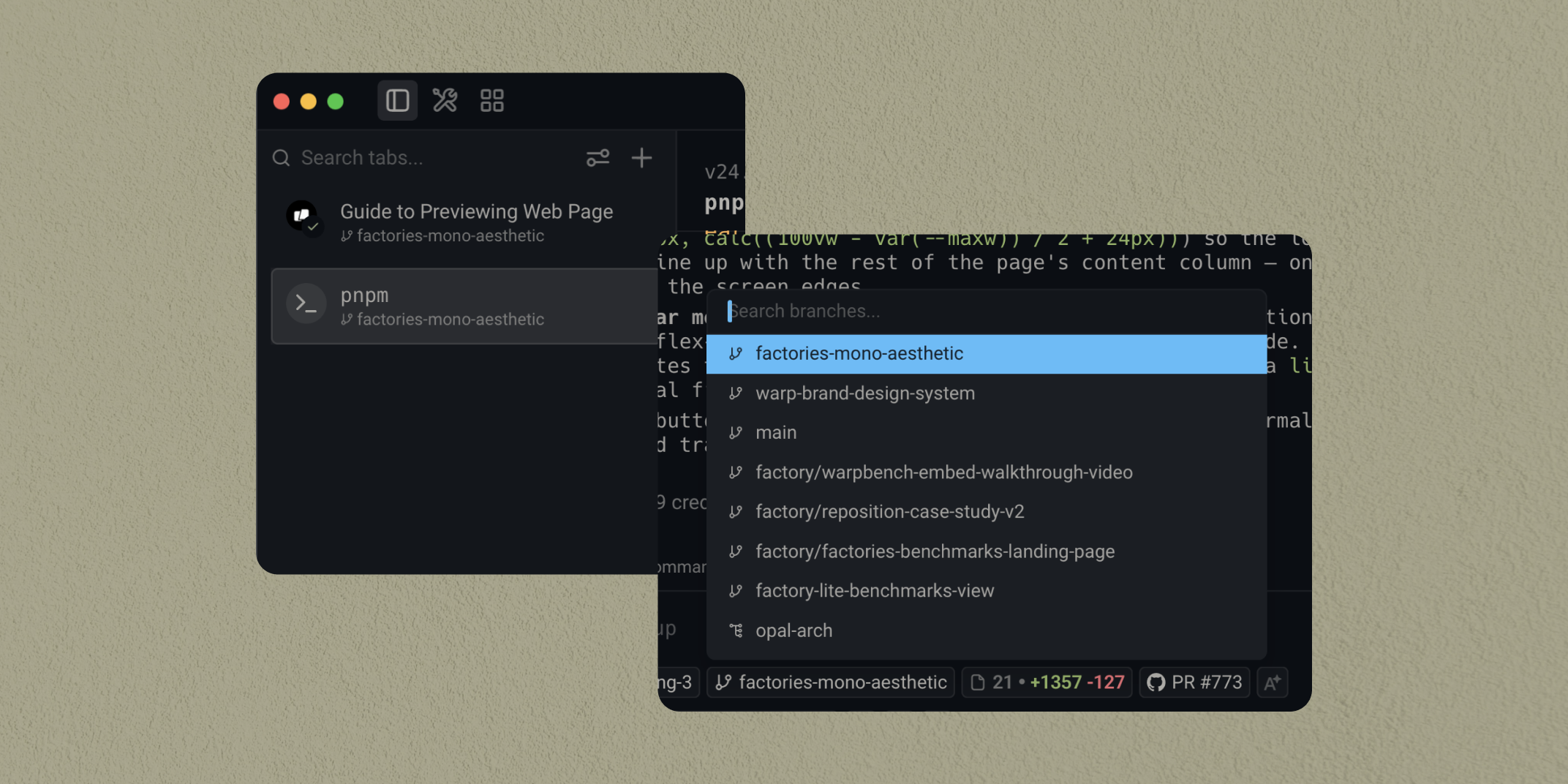
In a traditional terminal, each command's output is appended to one long text stream. Warp shows each command and its output as a separate block. This small change noticeably improves everyday use.
- Navigation: Jump up and down block by block instead of scrolling through long output.
- Search: Search within a block and filter its output.
- Copying: Copy just a command or just its output in one action.
- Sharing: Send a block to a teammate in a structured form instead of a screenshot.
- Use as context: Give an error block to an AI agent as context.
While debugging, you can bookmark an important block so it does not get lost among later output. Shortcuts can change between versions, so check the current list in the Blocks and keyboard shortcuts sections of the Warp documentation.
5Modern Text Editing and the Command Palette
Unlike classic terminals, Warp's command line behaves like a text editor. You can place the cursor with the mouse, edit multi-line commands comfortably, and select parts of a command. There is also a command palette where you can quickly reach settings, saved workflows, and commands.
- You do not have to arrow back one character at a time when editing long commands.
- You can search command history and saved workflows.
- Completion suggestions appear as you type, making mistakes easier to catch.
- Themes, fonts, opacity, and prompt appearance can be changed in settings.
6AI Features: Command Suggestions and Agents
Warp's AI side appears in several forms:
- Natural-language commands: Describe what you want to do in your own words and Warp suggests a command. Read and understand it before running it.
- Error explanations and suggestions: When a command fails, possible fixes can be offered.
- Agents: For longer tasks, AI agents can work step by step. External tools such as Claude Code, Codex, and Gemini CLI also run inside Warp.
- MCP support: Model Context Protocol servers can connect external tools to agents.
- Cloud agents: The Oz platform runs agents in Warp's cloud in the background. This is a separate feature and may require paid usage.
AI suggestions can be wrong. Always read commands that involve rm, sudo, disks, or network settings before running them. While learning, these suggestions are a good starting point; running a command you do not understand is risky. For the full list of AI features, see the Warp AI documentation.
7Warp Drive: Save Your Commands and Notes
Warp Drive is a workspace that keeps your terminal knowledge in one place. Instead of forgetting frequently used commands or repeating the same explanation to teammates, you can save them.
- Workflows: Save parameterized commands and reuse them, such as commands that start a virtual machine or follow server logs.
- Notebooks: Create step-by-step documents that mix prose and commands.
- Prompts: Store instructions you often give to AI.
- Environment variables: Manage variables for different environments. Check sharing settings carefully before sharing secrets.
If you work in a team, documenting a new member's setup steps in Warp Drive is tidier than repeating the same information in chat channels.
8Privacy: When Should You Turn AI Off?
Warp's AI features send the input you provide to various language model providers through their APIs. That means you should be careful when working with sensitive data. AI features can be turned off globally in Settings > AI; read the Warp AI documentation for details.
- For sessions involving production passwords, API keys, or customer data, consider turning AI off or using a separate terminal.
- Instead of typing secrets directly on the command line, use environment variables or a password manager.
- Before giving a block to an agent as context, check whether it contains sensitive information.
- If your company policy restricts sending data to external services, review Warp's privacy page and talk to the responsible person.
These precautions apply not only to Warp but to all cloud-connected AI tools.
9Using Warp with Your Lima Virtual Machine
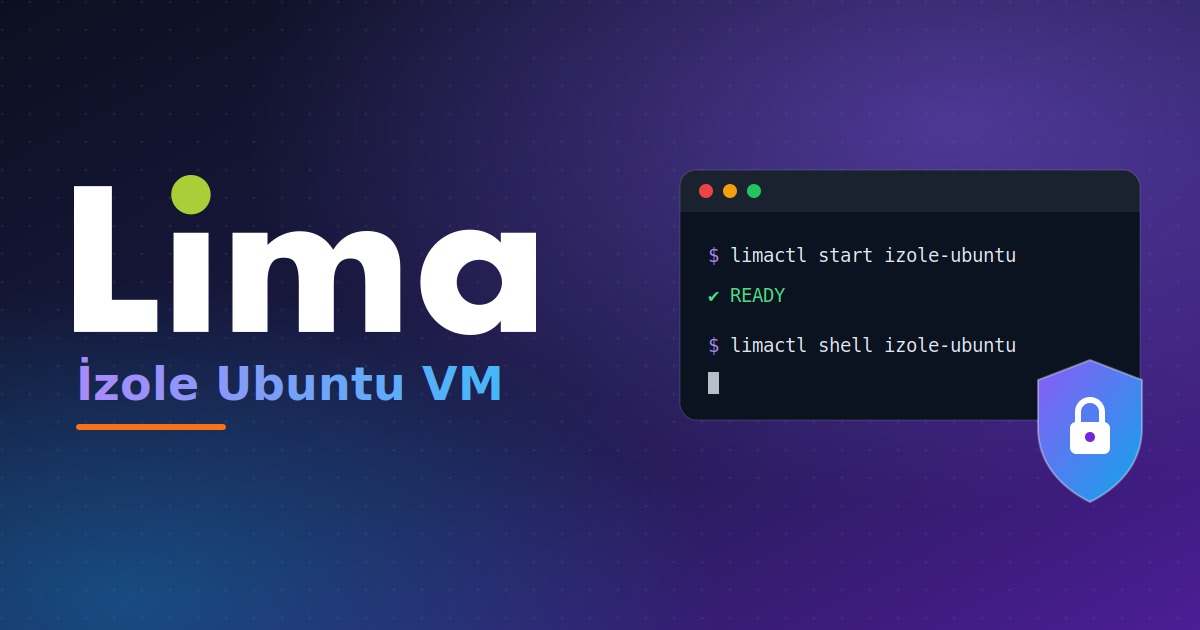
If you previously set up an isolated Ubuntu virtual machine with Lima, Warp offers a comfortable interface for managing it. If you have not, complete the steps in that guide first. Open Warp and run these in the macOS terminal:
limactl start izole-ubuntu
limactl shell izole-ubuntu
When the prompt changes to username@lima-izole-ubuntu, you are inside the virtual machine. With Blocks, you can review long output such as apt upgrade without scrolling. You can add frequently used commands to Warp Drive as workflows:
- Commands to start the virtual machine and enter it.
- The SSH tunnel command:
ssh -F ~/.lima/izole-ubuntu/ssh.config -L 8080:localhost:80 lima-izole-ubuntu - Stopping the virtual machine when you are done:
limactl stop izole-ubuntu
If you use the virtual machine as an isolated test area, keep sensitive information out of it and pay attention to which commands Warp's AI features can see. To learn more about Lima itself, see the Lima GitHub page.
10Warp or Your Current Terminal?
Warp may not be the best choice for everyone. Consider these points when deciding:
- Choose Warp: If you want its block structure, editor-like command line, and AI support.
- Stay with your current terminal: If you want a minimal tool with no account and no cloud connection.
- Try it: Use it for a week on real work. If block navigation and command history fit your workflow, keep going.
- Mix both: Use Warp for general development and a plain terminal for sensitive infrastructure work.
Warp's shell compatibility, performance, and feature differences can change between versions. Check current comparisons in the official documentation.
11A Practical First-Week Plan
Day 1, setup: Install Warp, set the theme and font, and confirm your existing shell works.
Day 2, blocks: While running everyday commands, try block navigation, search, and copying.
Day 3, Warp Drive: Save your three most-used commands as workflows.
Day 4, AI: Ask for a command in plain language for a harmless task; read the suggestion before running it.
Day 5, privacy: Review Settings > AI and decide in which sessions you will turn AI off.
This plan is a simple way to test whether Warp suits you; it is not a mandatory roadmap.
12Resources and Related Articles
- Isolated Ubuntu VM on macOS with Lima: Build the isolated Linux environment you can manage from Warp, step by step.
- Warp official website: Downloads, current plans, and announcements.
- Warp terminal documentation: Blocks, Warp Drive, themes, and settings.
- Warp AI documentation: AI features and privacy settings.
- Lima GitHub page: Lima's source code and documentation.
?Frequently Asked Questions
What is Warp terminal?
Warp is a modern terminal application written in Rust that splits command output into blocks and offers AI-assisted features. It is available on macOS, Linux, and Windows.
Is Warp free?
The terminal itself is free to use. AI features run on a credit system and some team features are on paid plans. Plans change often, so check current details on Warp's official site.
Do I need an account to use Warp?
On first launch, you are asked to sign in with a free Warp account. The account requirement can change between versions; check the official documentation for the current status.
Can I turn off Warp's AI features?
Yes. You can turn AI features off globally in Settings > AI. While they are on, the input you provide is sent to language model providers.
Is Warp open source?
Warp announced in April 2026 that it was open-sourcing its code. The main application is released under AGPL v3 and the UI framework under MIT. Services such as AI, Warp Drive, and cloud agents remain closed source.
Does Warp work with my existing shell?
Warp supports common shells such as zsh, bash, and fish. Your existing aliases and configuration usually keep working. See the documentation for the current list of supported shells.
Can I run tools like Claude Code inside Warp?
Yes. Command-line agents such as Claude Code, Codex, and Gemini CLI can run in Warp's terminal. Warp also offers its own built-in agent.
Can I use Warp together with a Lima virtual machine?
Yes. In Warp, run limactl start and limactl shell from the macOS terminal to enter the virtual machine. For setup, see our Lima guide.
✦Conclusion
Warp makes everyday work easier by splitting terminal output into blocks, making the command line behave like an editor, and bringing AI and team knowledge into the terminal. At the same time, remember that its AI features send data to external providers; turn them off in sensitive sessions. Try Warp for a week on real work, add your frequent commands to Warp Drive, and decide for yourself whether it fits. You can also manage the isolated Ubuntu environment you built with Lima from inside Warp and use the two together.